Wireless Settings
Wi-Fi Settings User Guide
The Wi-Fi configuration menu allows your HUBBOX device to scan for local wireless networks, establish secure connections, or manually configure access for networks with hidden SSIDs.
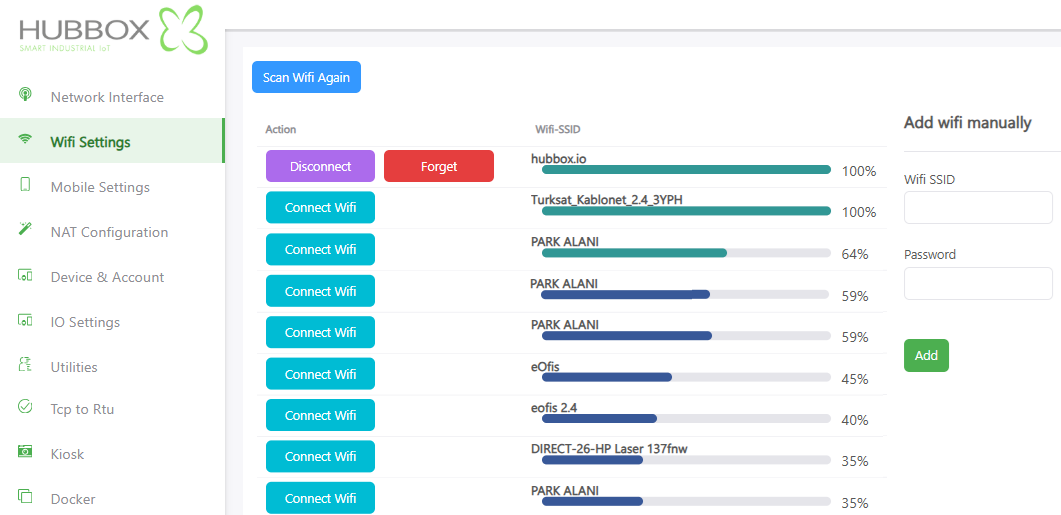
1. Network Scanning and Listing
The device automatically probes the environment for available wireless access points and lists them with their technical attributes:
- Scan Wifi Again Refresh: Used to update the list of available networks and capture real-time signal fluctuations.
- Wifi-SSID: Displays the broadcast name of the detected networks (e.g.,
hubbox_industrial). - Signal Strength (%): Represented by a percentage and a visual bar. 100% represents the peak signal quality.
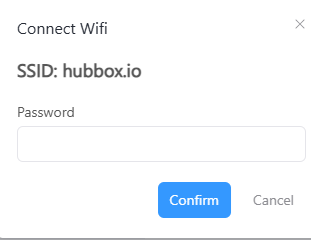
2. Connecting to a Network
To join a visible network, follow these simple steps:
- Initiate: Click the Connect Wifi button next to your target network.
- Authenticate: In the resulting pop-up, enter the network's security key (WPA2-PSK, etc.) and confirm.
3. Manual Network Addition (Hidden SSIDs)
Use this section for networks that do not broadcast their SSID for security reasons:
- Wifi SSID: Type the exact name of the hidden network (case-sensitive).
- Password: Enter the network's authentication password.
- Add: Click the green button to register the settings and begin the handshake process.
Redundant Connection (Failover): HUBBOX supports Wi-Fi as a secondary internet source. If the primary Ethernet WAN link fails, the device can automatically switch to the Wi-Fi connection to maintain uptime.
Operational Guidelines
- Minimum Signal Threshold: For reliable industrial data throughput and VNC/HMI remote desktop stability, a signal strength of at least
60%is strongly recommended. - Congestion Management: In environments with high Wi-Fi density, connection drops may occur. Configure your router to use non-overlapping channels (1, 6, or 11 on 2.4GHz) to reduce interference.
- Enclosure Warning: If the HUBBOX is installed inside a metal electrical cabinet, the signal will be significantly attenuated. Always use an external Wi-Fi antenna mounted on the outside of the cabinet.
For technical assistance regarding wireless configurations: www.hubbox.io