Device Register
New Device Registration and Device Management
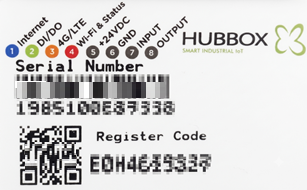
Device registration is carried out through the page below, which opens via the "Device Registration" button on the panel. The information required in these fields can be found on the physical label located on your device.
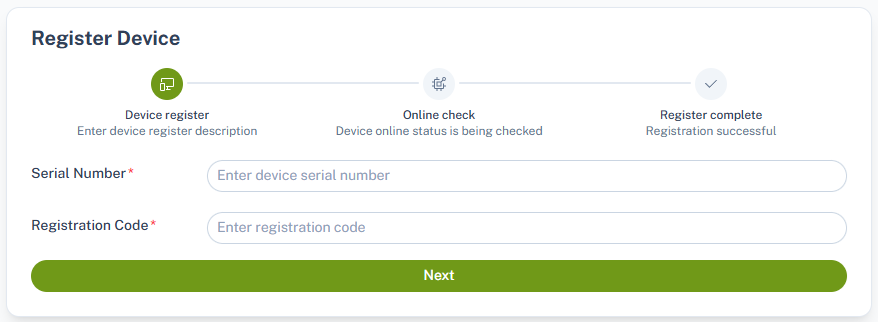
Enter the "Serial Number" and "Register Code" on the screen, then click the "Next" button.
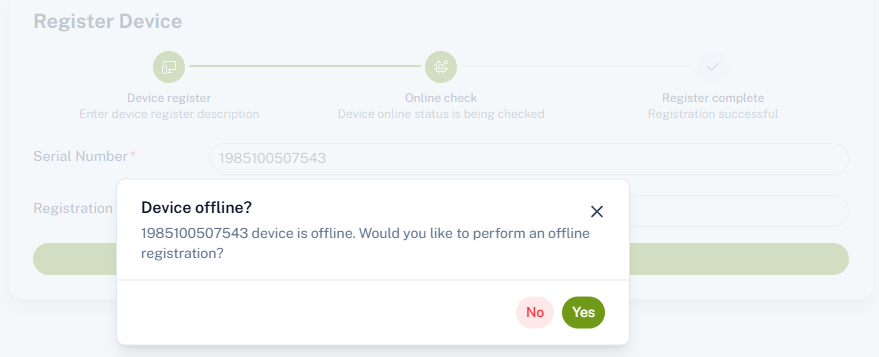
If your device is connected to the internet and online at that moment, it will be registered directly into the system. If the device is offline, a warning window containing "Yes" and "No" buttons will appear. By clicking the "Yes" button, you can register the device even if it is offline, and start using it as soon as it connects to the internet.
Device Listing and Search Function
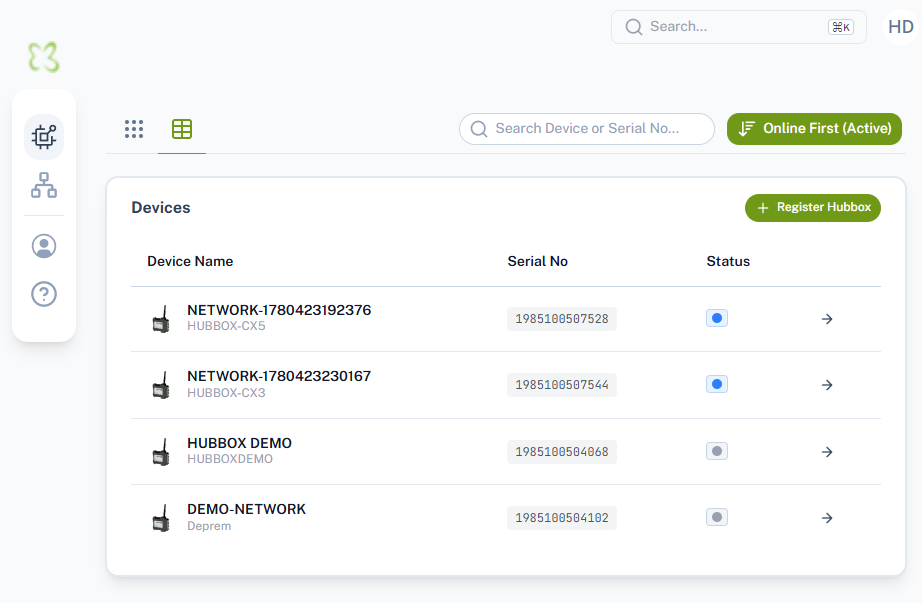
All previously registered devices are listed under the Devices menu. By default, online devices are automatically sorted to appear at the top of the list. You can use the search function to change this sorting or filter through your existing devices.

Your registered devices are listed in detail on the panel in the following format: