Initial device registration and HUBBOX Panel access
HUBBOX Smart Industrial IoT Device Registration Guide
Integrating your HUBBOX Smart IoT Gateway device into our cloud management platform (HUBBOX Panel) is the first step toward managing all your field OT/IT operations securely, isolated, and remotely. Follow the instructions below to successfully register your device in seconds.
Device Registration and Activation Steps
To provision your device in the system, you need to fill out the form located under the "My Devices" tab in the HUBBOX interface. The required data can be found on the physical label attached to your device:
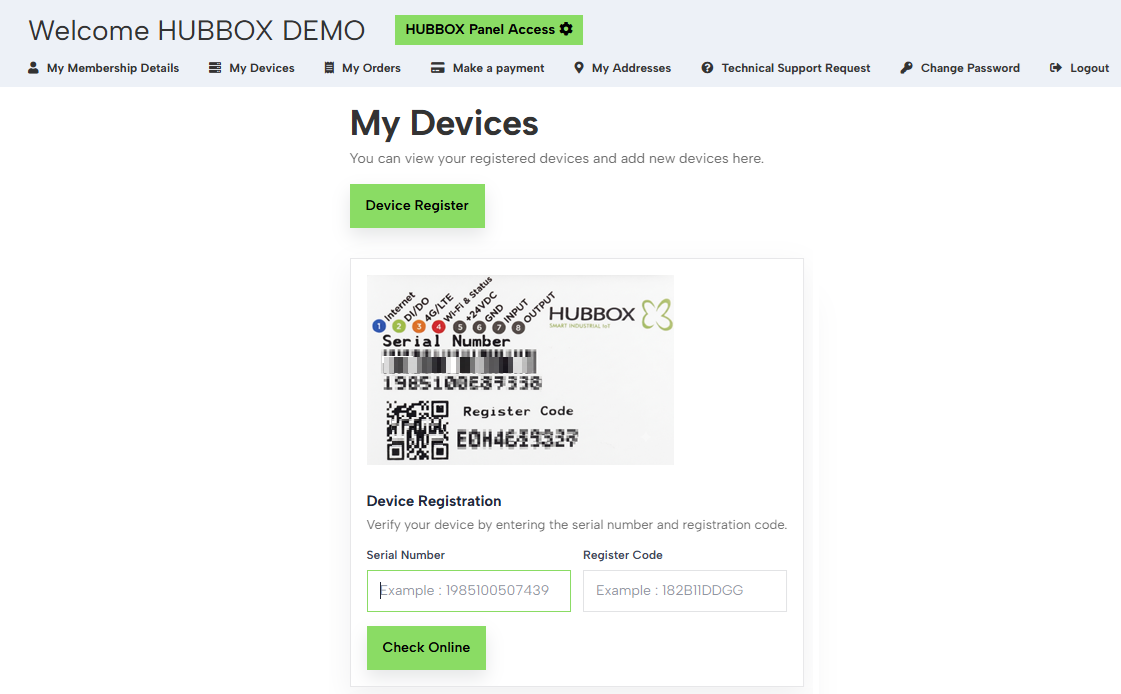
My Devices link in the top main menu, then click the green Device Register button.1985100507438) into the "Serial Number" field on the panel.E0H4619337) found on the bottom-right part of the label, right next to the QR code.Check Online button at the bottom to finalize your device registration and verify its internet connectivity.If your HUBBOX device is not yet connected to a network in the field, or if it operates within a highly restricted local network (Air-Gapped Network), you can also add the device to your panel Offline:
- After entering the Serial Number and Register Code into the form, you can immediately confirm the registration without waiting for the device to connect to the internet.
- When registered in offline mode, your device will appear passive on the panel. As soon as an internet connection is established in the field or the WAN/4G configuration is completed, the device will automatically handshake with the cloud and its status will update to "Online".
The label indicators on the top panel of your HUBBOX device represent the actual physical connectivity status in the field:
If your device does not switch to "Online" mode after clicking the Check Online button, and you want to establish a live connection instead of using the offline registration option; please check the device power lines (+24VDC) first, followed by the Internet (WAN) cable linkages or 4G/LTE antenna alignments indicated by marker 1. If the issue persists, you can immediately open a ticket via the Technical Support Request page on the top menu.