Device Management
Device Management and Detailed Statistics
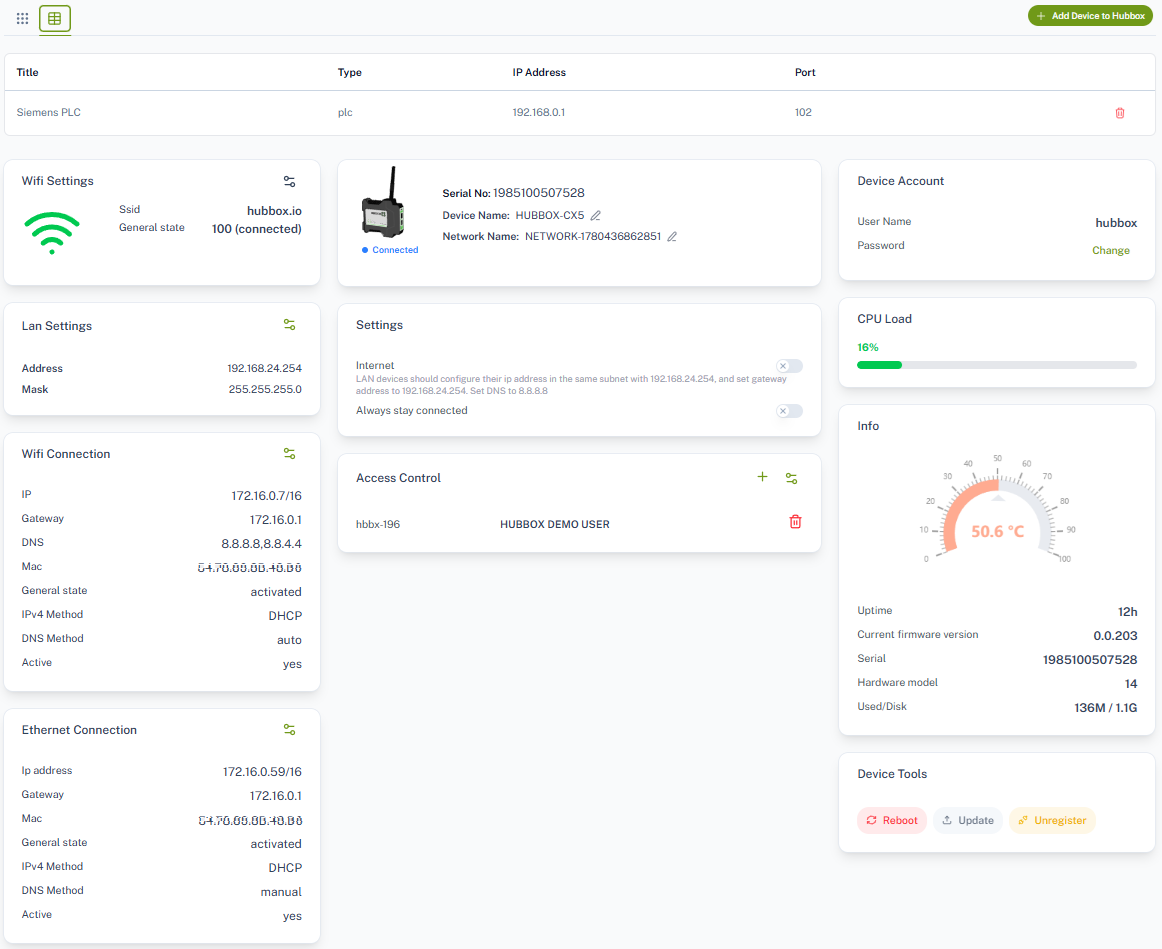
To manage your HUBBOX Connect devices, you can click on the "->" icon located on the right side of your devices in the device list. This allows you to view your devices' configuration and statistical data, as well as remotely manage certain features.

Icons Used in Device Management and Their Descriptions
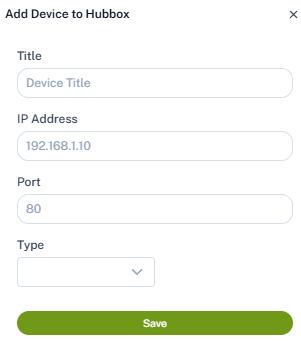
 Opens the window where target devices accessible by your HUBBOX Connect device are defined.
 Deletes the defined item within the respective module.
 Adds/defines a new item to the respective module.
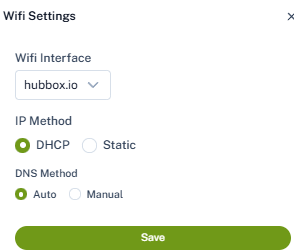
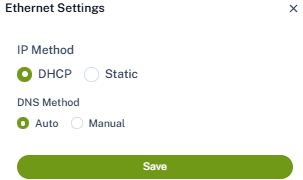
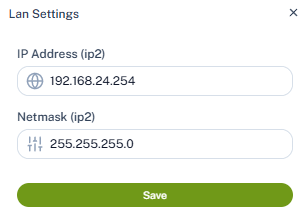
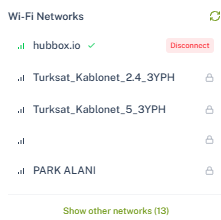
 Opens the configuration settings for the respective module. Below are the screens where some of these settings are managed.
 Allows you to update or edit the definition in the respective field.
Device Tools
You can use the following buttons located in the "Device Tools" area to remotely reboot, update, or remove your device from your system.

Detailed Device View
Below is the panel page displaying the detailed features and status indicators of an online device: