Solution to the Could not detect OS Architecture error.
"Could not detect OS Architecture" Error and WMIC Installation Solution
When running the HUBBOX Desktop Client or other Industrial IoT / Network software on the Windows operating system, the system throws a "Could not detect OS Architecture" error if the operating system architecture cannot be detected. The main reason for this issue is that the WMIC (Windows Management Instrumentation Command-line) component, which reads system information, is either not installed or not active on your operating system.
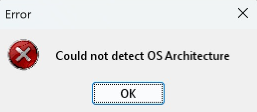
Step-by-Step Solution: Installing the WMIC Component
To resolve this error, simply add the WMIC component to your system by using the Windows Command Prompt (CMD) with administrator privileges. Follow the steps below in order:
1. Running Command Prompt (CMD) as Administrator
- Open the Windows Start menu.
- Type cmd or Command Prompt in the search bar.
- Right-click on the result that appears and click the "Run as administrator" option.
2. Running the WMIC Installation Command
Copy and paste the exact command below into the black command screen that opens, and press the Enter key on your keyboard:
DISM /Online /Add-Capability /CapabilityName:WMIC~~~~3. Waiting for the Installation to Complete
- When the process starts, a percentage (`%`) progress bar will appear on the screen.
- Do not close the command window until the process reaches 100% and you see the "The operation completed successfully" message.
4. Restarting and Verifying the System
After the installation is complete, restart your computer. When you run the HUBBOX Desktop Client or the other industrial network software you want to install again, you will see that the "Could not detect OS Architecture" error has been resolved.