HUBBOX Desktop Client Install - 1
HUBBOX Desktop Client Installation and Usage Guide
To securely access your HUBBOX Industrial IoT, OT/IT, and 4G/LTE/5G Router hardware remotely through an encrypted tunnel, you must use the HUBBOX Desktop Client software. This guide covers the download, installation, and connection steps for the desktop client, which enables you to connect to your end-to-end Industrial Network devices[cite: 1].
Step-by-Step Installation and Connection
1. Downloading the Software
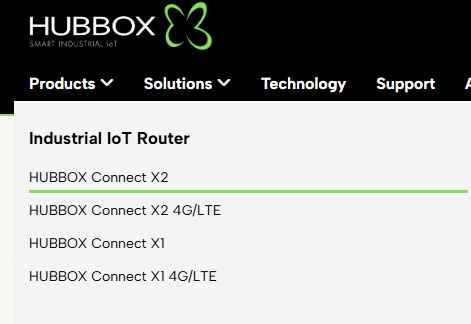
To download the appropriate software for your device via the HUBBOX website, click on the Products tab in the top menu and go to the relevant Industrial IoT Router (e.g., HUBBOX Connect X2) page.
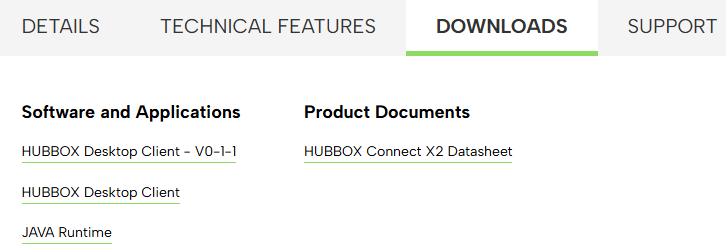
On the product page, switch to the DOWNLOADS tab and click the HUBBOX Desktop Client link to download the ZIP file to your computer.
2. Extracting the Compressed File to a Folder
Locate the downloaded Hubbox_Desktop_Client_0-1-1.zip file. Instead of running the compressed file directly, you need to extract the files inside it to a folder.
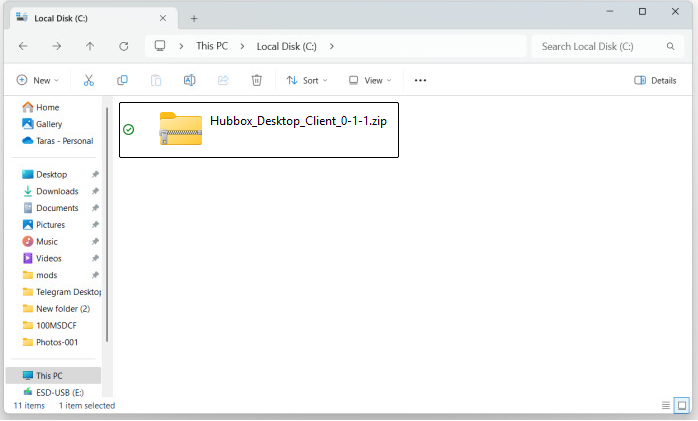
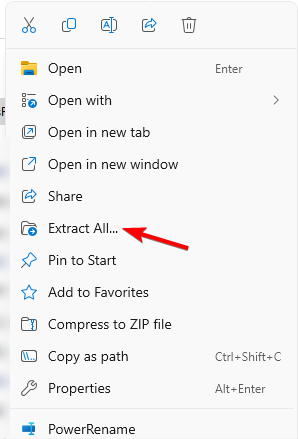
Right-click the file and click the Extract All... option.
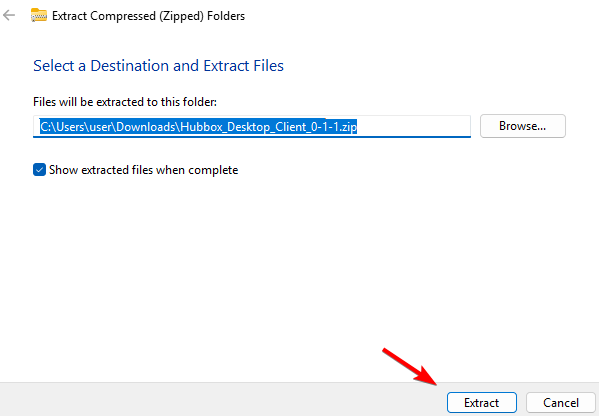
After selecting the destination folder, complete the process by clicking the Extract button.
3. Launching the Application
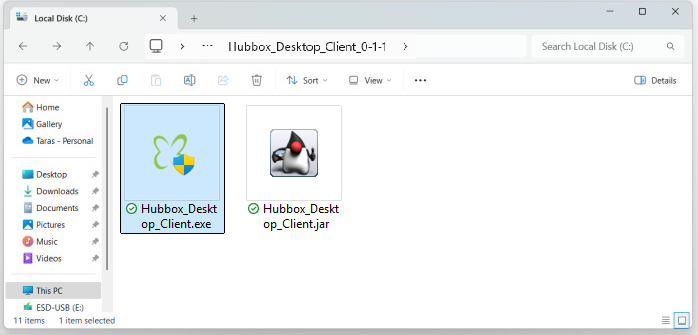
Open the directory containing the extracted files. To launch the HUBBOX client, double-click the Hubbox_Desktop_Client.exe (for Windows) or Hubbox_Desktop_Client.jar (cross-platform) file.